How-to
How to Download an Entire Website on Windows
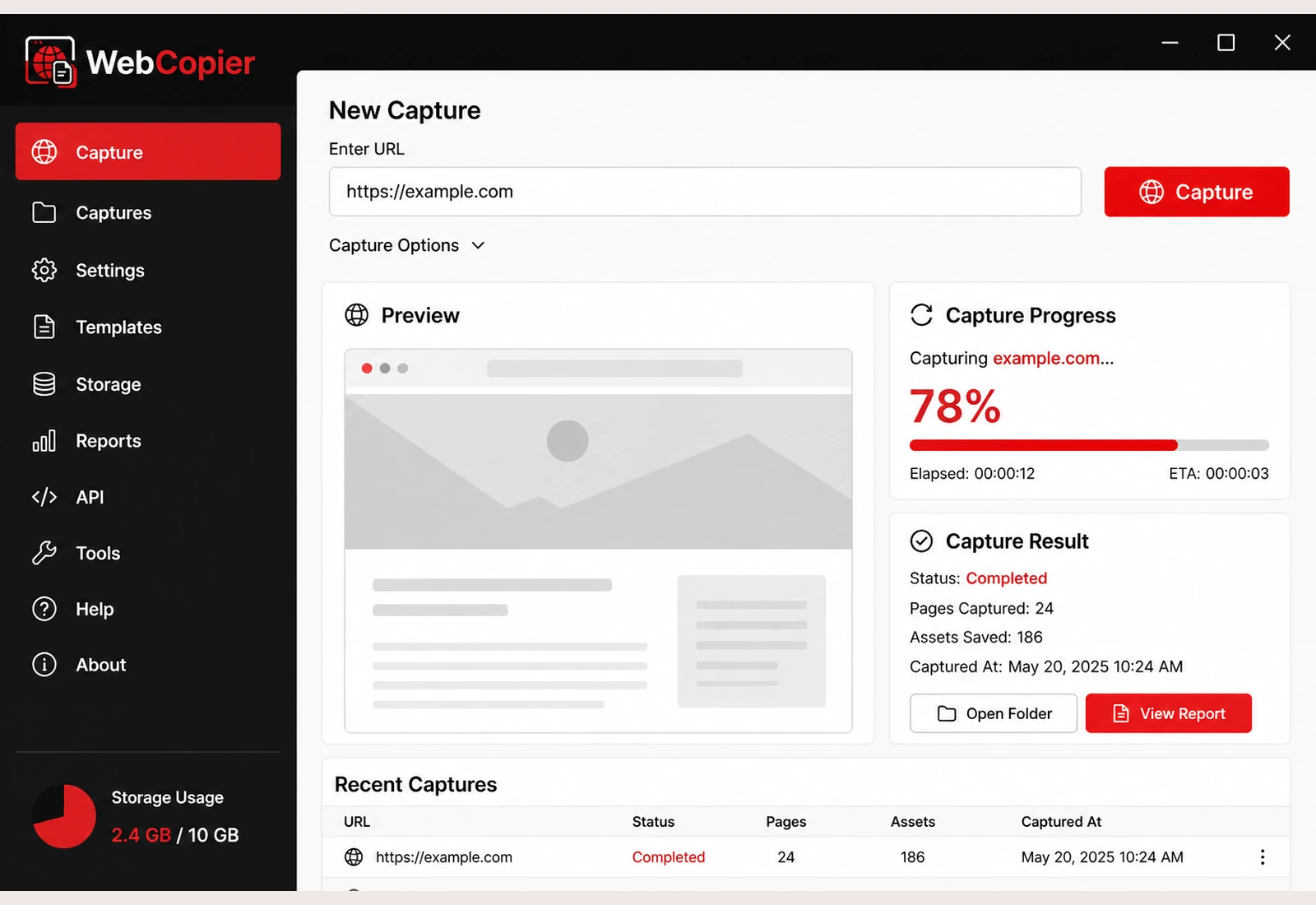
This is the Windows walkthrough. Install WebCopier, choose the site, paste the URL, save the pages, then open the local copy on your PC.
Download WebCopier for WindowsSee plansRead the docs
What you need
- A Windows 10 or Windows 11 PC (64-bit)
- WebCopier 1.4.1 from the download page
- A website URL you are allowed to copy
Step 1. Choose the website
Open the site in Chrome or Edge first. Confirm it is the public page you want on your PC. WebCopier copies what that browser can open.
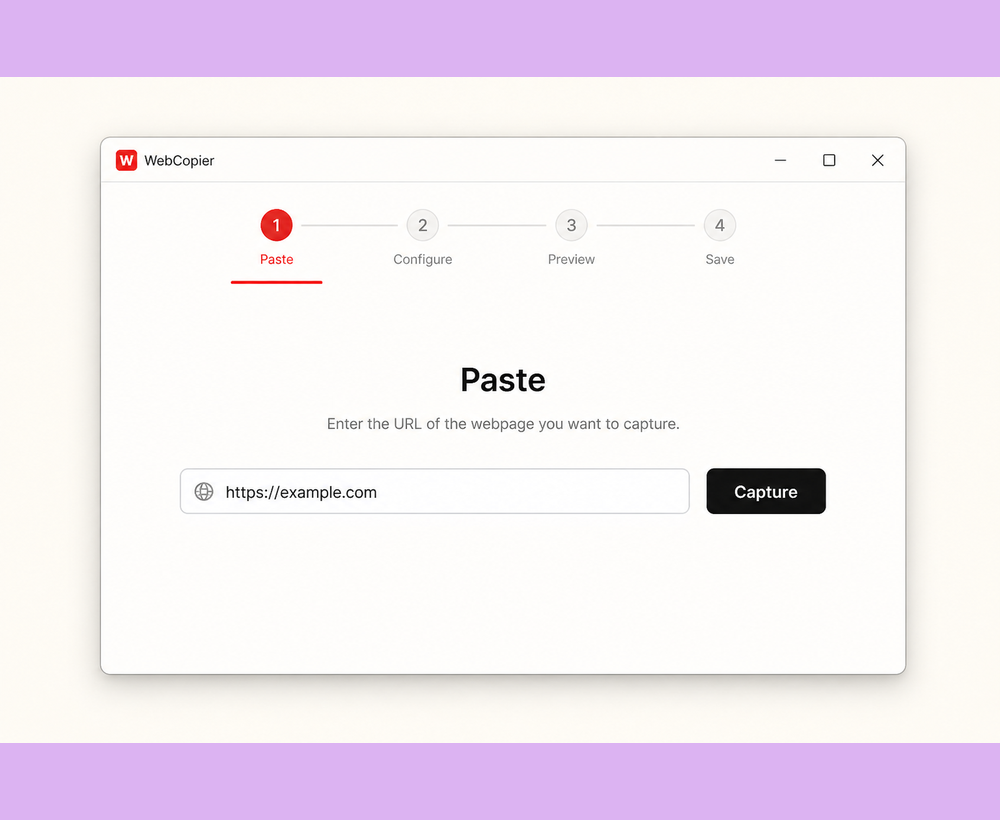
Step 2. Paste the URL
Open WebCopier and paste the same address into the app.
Step 3. Start the capture
Start the job. WebCopier opens a real browser so the page can load the way you see it, including JavaScript.
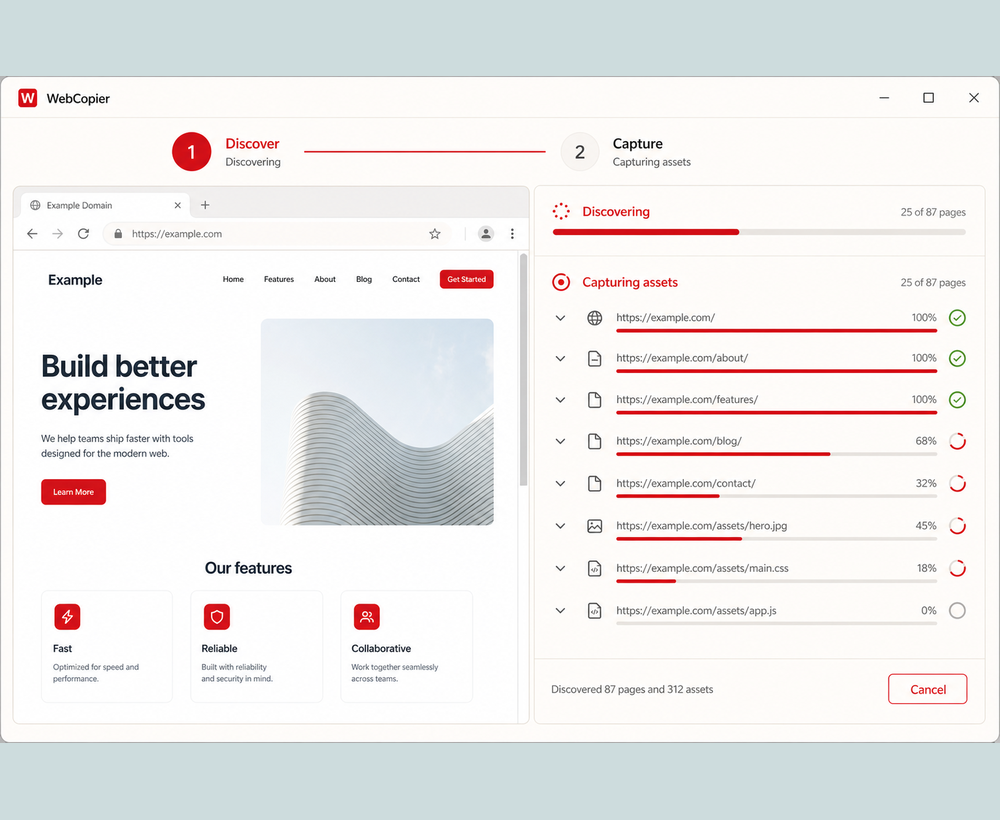
Step 4. Let WebCopier discover and save the pages
Internal links and sitemaps feed more pages. Website files used by those pages are written into the local project. How much of the site you get follows your plan. The free plan saves one complete page.
Step 5. Open the local project
When the job finishes, open the project from WebCopier. The copy lives on your Windows PC.
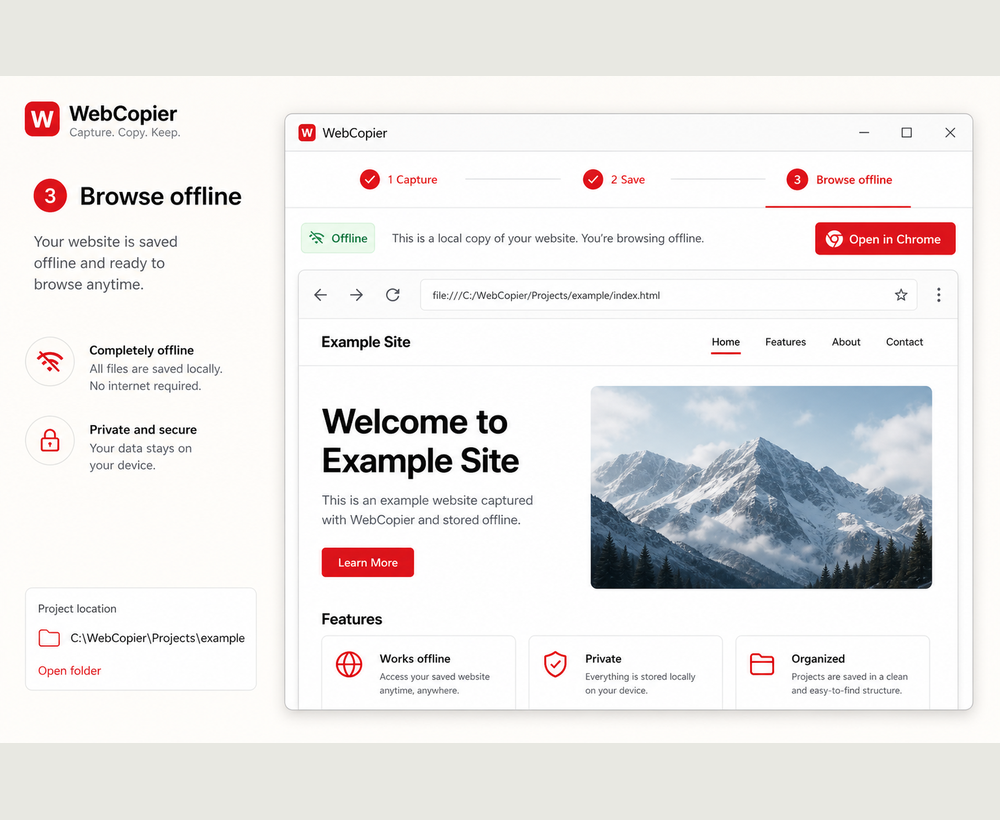
Step 6. Browse the saved website
Walk the pages you downloaded. You now have a local copy of the site. If a page looks empty, see why a captured page can be blank.
Need the product that does this job? Download an entire website. Comparing tools? WebCopier vs HTTrack.
FAQ
Can I download an entire website on Windows?
Yes. Install WebCopier, paste the URL, start capture, then open the local project. Pages and files WebCopier discovered are saved on your PC.
Do I need another tool like HTTrack?
Not for this job. WebCopier is the Windows app that opens the site in a real browser, so JavaScript pages can be downloaded as you see them.
Download WebCopier for Windows
Paste a URL, copy the site you can open in a browser, and keep a local project on your PC. The free plan saves one complete page.